When you share a product page on Facebook or X, the preview can sometimes show the wrong image, title or description. This beginner-friendly guide explains why it happens and how to choose clearer social sharing images and text before posting.

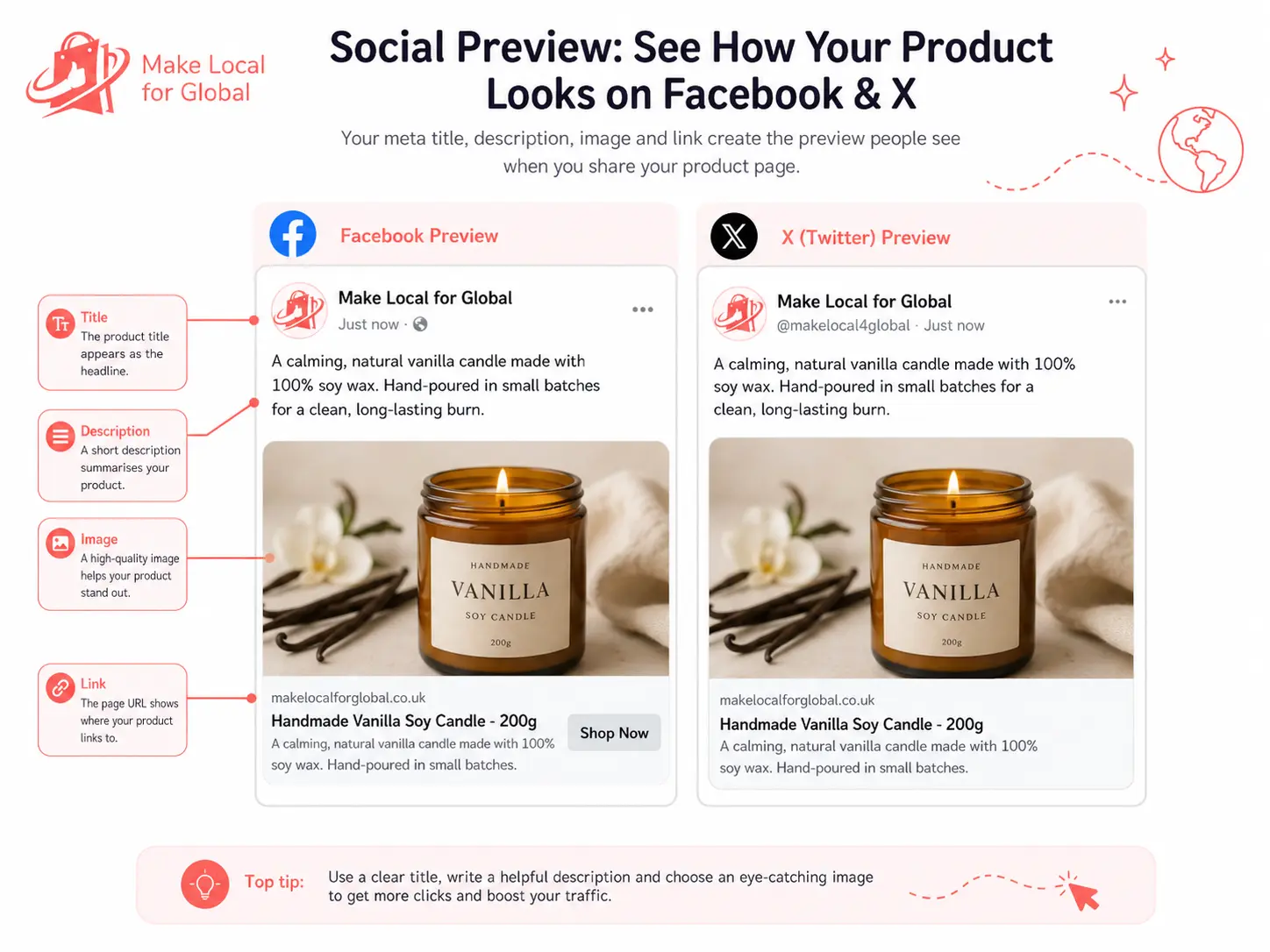
When you share a product page on Facebook or X, the platform may create a small preview.
That preview can show:
This preview is what people see before they click.
Sometimes the preview looks right.
Sometimes it looks wrong.
You might share a product page and see the wrong image, an old title, no image, a cut-off description or a preview that does not explain the product clearly.
This can be frustrating, especially when your product page looks fine on your website.
The good news is that you can usually improve this by checking the social sharing fields in your SEO settings.
When you paste a product page link into Facebook or X, the platform looks at the page and tries to build a preview.
It may look for:
For example, if you share a candle product, you want the preview to show something like this:
Handmade Vanilla Soy Candle – 200g
Bring a warm vanilla scent into your home with this handmade soy candle in a 200g glass jar.
With a clear candle image.
That makes sense to the person seeing the post.
A poor preview might show:
Product
Great item. Buy now.
With the wrong image or no image.
That does not help people understand what you are sharing.
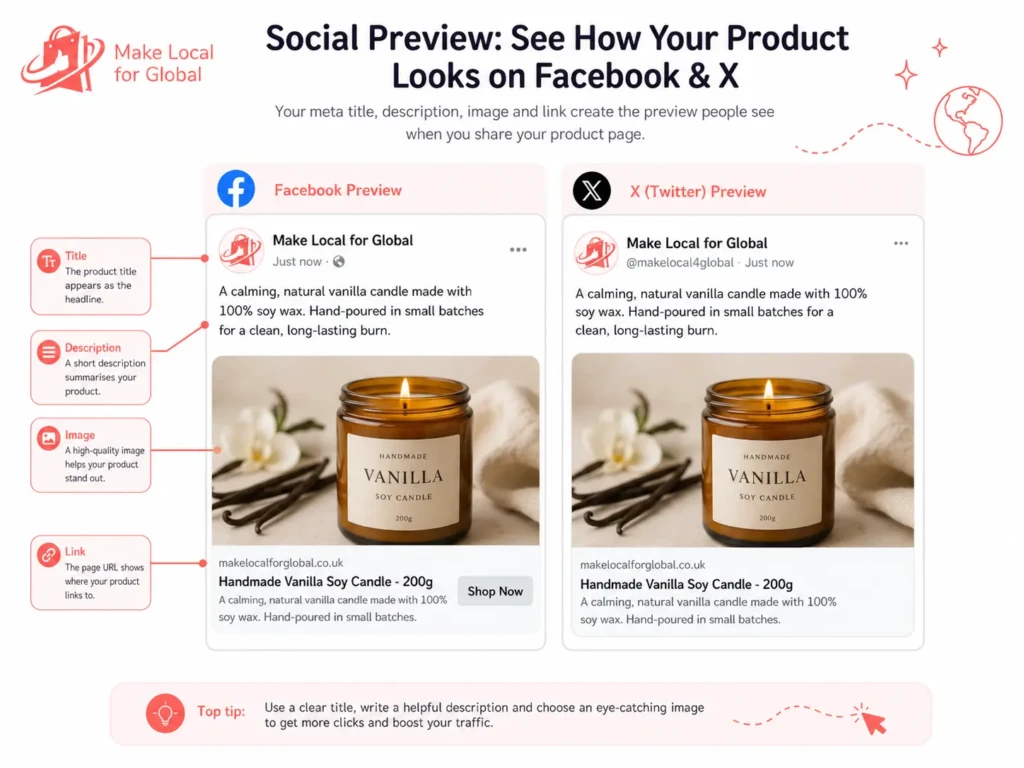
People scroll quickly on Facebook and X.
They may only look at your post for a second.
A clear preview can help them understand:
A poor preview can make the post feel unfinished.
For example:
Bracelet
Good item.
This is too vague.
A better preview is:
White Beaded Tree of Life Bracelet
A white beaded bracelet with a gold-tone Tree of Life charm and adjustable cord. Suitable for everyday wear or gifting.
The second version gives the customer more reason to click.

One of the most common problems is the image.
You might share a bracelet product, but Facebook or X shows:
This can happen when the platform cannot find a clear sharing image, or when it picks the first image it sees on the page.
That is why the Facebook image and X image fields are useful.
They let you choose the image you want people to see when the page is shared.
Choose an image that explains the page quickly.

For a product page, use a clear image of the product.
For a blog article, use the blog thumbnail.
For a normal website page, use an image that matches the page topic.
For example:
Product page
Use a clear product image, such as the candle, bracelet or planner.
Blog article
Use a blog thumbnail with a short title.
Contact page
Use a simple contact or support image.
The image should not be too busy.
People may see it on a phone, so it needs to be clear at a small size.
Your shared preview may show a title that is too short, too long or not helpful.
For example:
Product
Or:
Tree Of Life Spiritual Energy Yoga Bracelet High Quality Fashion Women Gift Jewellery Lucky Bracelet White Beads Adjustable
The first title is too vague.
The second title is too long.
A better title would be:
White Beaded Tree of Life Bracelet – Adjustable Fit
That tells people what the product is without overloading them.
Your social preview title should be clear and easy to read.
For a product page, start with the product name.
Add one useful detail if it helps.
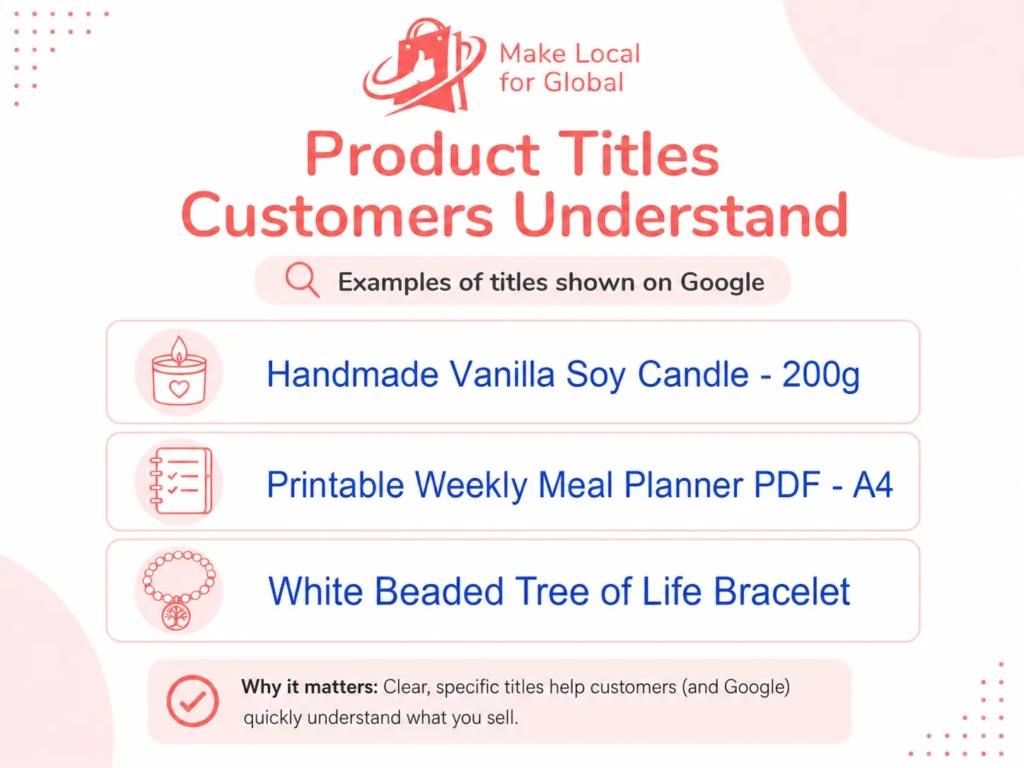
Examples:
Handmade Vanilla Soy Candle – 200g
White Beaded Tree of Life Bracelet – Adjustable Fit
Printable Weekly Meal Planner PDF – A4
Editable Instagram Templates for Canva – Pack of 20
Do not fill the title with random keywords.
Write for people first.
The description under the title may come from your meta description or page content.
If you leave the description blank, Facebook or X may pull random text from the page.
It might show something like:
Specification: Colour White, Packing OPP, Item Type Lucky Bracelet
That looks like stock information, not customer-friendly wording.
A better description would be:
A white beaded bracelet with a gold-tone Tree of Life charm and adjustable cord. Suitable for everyday wear or gifting.
This sounds clearer and more useful.

Write one or two short sentences.
For a product page, say:
Example:
Bring a warm vanilla scent into your home with this handmade 200g soy candle. A simple choice for cosy evenings, home fragrance or gifting.
For a digital product:
Plan meals, snacks and shopping with this A4 printable weekly meal planner PDF. Download after purchase and print at home.
For a bracelet:
A white beaded bracelet with a gold-tone Tree of Life charm and adjustable cord. Suitable for everyday wear or gifting.
Keep it simple.
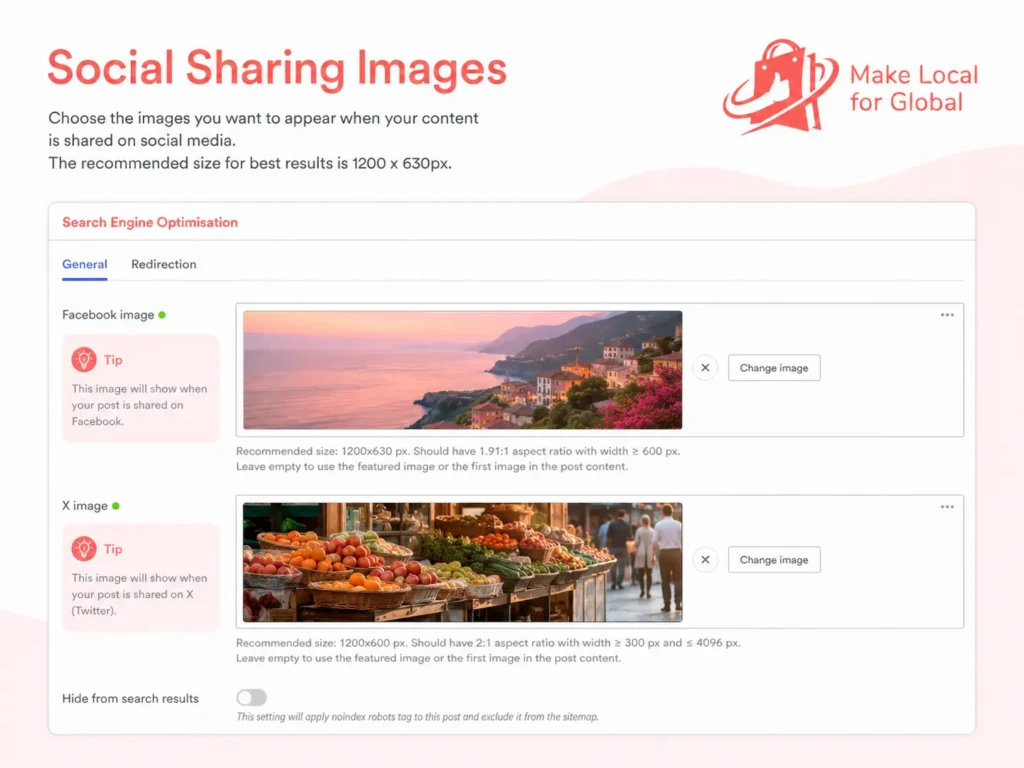
In your SEO settings, you may see two fields:
Facebook image
X image
These images help control how the page may look when shared on each platform.
They may use different image shapes.
Facebook often works well with a wide image.
X may crop images differently depending on the post and display.
The main point for beginners is this:
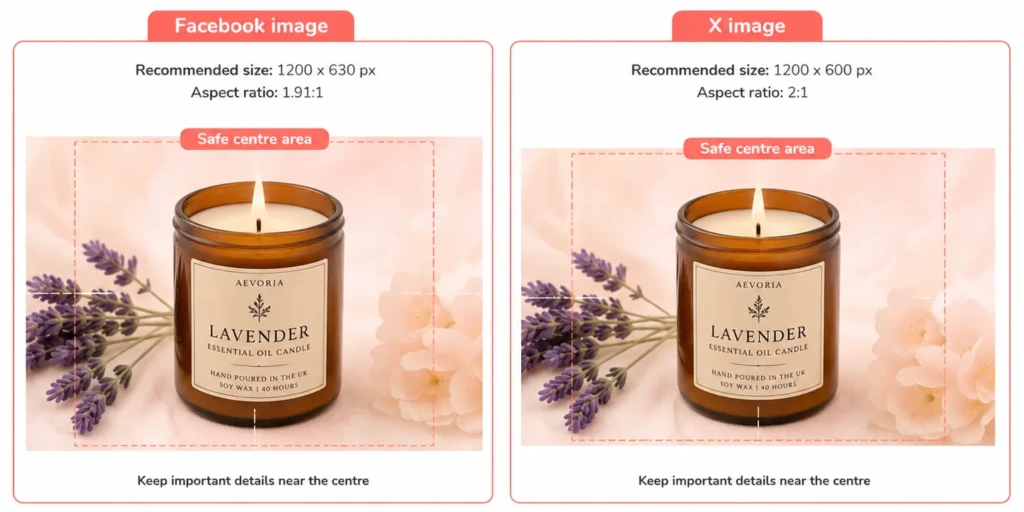
Use a clear image that still makes sense if it is cropped.
Keep the product or main text near the centre.
Do not put important words too close to the edge.
Your backend may recommend image sizes.
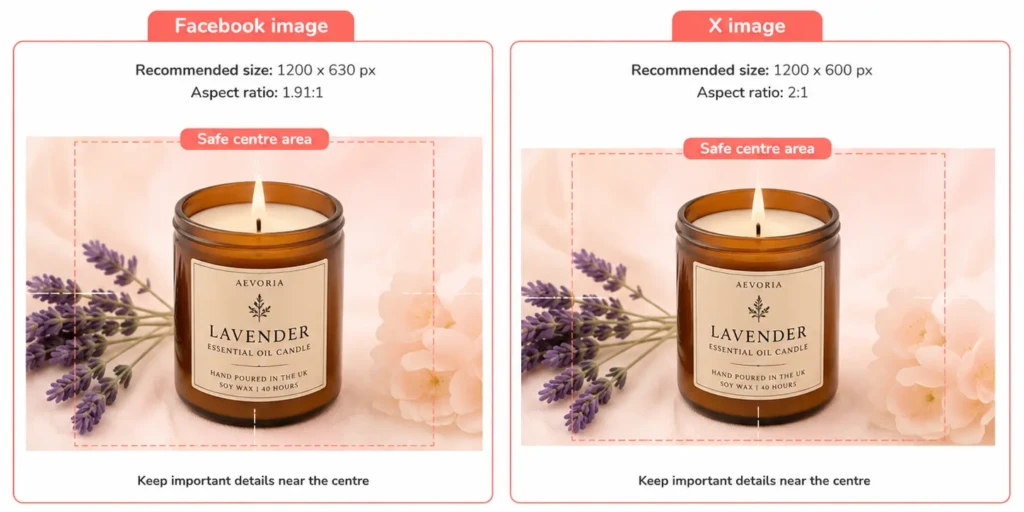
A common recommendation for Facebook is a wide image, such as:
1200 x 630 px
For X, a wide image such as:
1200 x 600 px
You do not need to worry too much about the technical detail at first.
Use the recommended size shown in your backend where possible.
The main thing is to avoid very small, blurry or odd-shaped images.
Sometimes you fix the title, description or image, but Facebook or X still shows the old version.
This can happen because platforms may save a copy of your preview for a while.
This saved copy is often called a cache.
In simple words, the platform may be remembering the old preview.
If that happens, wait and try again later.
Some platforms have tools that can refresh the preview, but beginners do not need to start there. First, make sure your page settings are correct.
Before changing social sharing fields, check the product page.
Ask:
Is the product title clear?
Is the product description useful?
Is the product image clear?
Does the price show in £?
Does the page explain what the customer gets?
If the page itself is unclear, the shared preview may be unclear too.
For example, if your product title is only:
Planner
The social preview may not tell people enough.
A better product title is:
Printable Weekly Meal Planner PDF – A4
Use the Facebook image field when you want to choose the image shown on Facebook.
For a product page, use a clear product image or a branded product preview.
For example, for a candle page:
For a blog article:
Do not use an image with tiny text that people cannot read on mobile.
Use the X image field when you want to choose the image shown on X.
The same rule applies:
Make it clear at a glance.
For a product page, use the product image.
For a blog article, use the blog thumbnail.
For a normal page, use an image that matches the page.
Keep the main subject centred.
Avoid putting key text right at the edge because it may be cropped.
Product:
Handmade Vanilla Soy Candle – 200g
Social title:
Handmade Vanilla Soy Candle – 200g
Social description:
Bring a warm vanilla scent into your home with this handmade 200g soy candle. A simple choice for cosy evenings or gifting.
Facebook image:
A clear image of the candle in a glass jar with a soft background.
X image:
A wide image with the candle centred and no important text near the edge.
This gives the shared preview a better chance of looking clear.
Product:
White Beaded Tree of Life Bracelet
Social title:
White Beaded Tree of Life Bracelet
Social description:
A white beaded bracelet with a gold-tone Tree of Life charm and adjustable cord. Suitable for everyday wear or gifting.
Facebook image:
A clear bracelet image, ideally showing the charm.
X image:
A centred bracelet image that still looks good when cropped.
Blog title:
Simple SEO Checks Before You Publish
Social title:
Simple SEO Checks Before You Publish
Social description:
Use this beginner-friendly SEO checklist before publishing a product, page or blog post. Check titles, descriptions, links, images and visibility.
Facebook image:
A blog thumbnail with the article title.
X image:
A wide version of the thumbnail with the title centred.
If you do not choose an image, the platform may choose one for you.
That may be the wrong image.
Small images can look blurry or may not show properly.
Social platforms may crop images.
Keep important text and products near the centre.
A title like Product or Bracelet does not explain enough.
Text like 100% high quality fashion female item does not feel helpful.
Rewrite it for customers.
Facebook and X may keep an old version for a while. Give it time after making changes.

Before you share your product page, check:
Title
Does the preview title clearly say what the product is?
Description
Does the description explain the product in plain English?
Image
Does the image show the product or page topic clearly?
Cropping
Would the image still make sense if the edges were cut slightly?
Mobile view
Would it still be clear on a phone?
Page match
Does the preview match what customers see after they click?
Price
Is the product page price shown clearly in £?
Make Local for Global helps hobbyists, artists, startups and small businesses launch online stores without needing technical skills.
In your backend, the SEO settings give you fields for Facebook image and X image.
These fields help you guide how your product, page or blog article may look when shared.
You do not need to know technical code.
Choose a clear title, write a short description and select the right image.
That is a strong starting point.
If your product page looks wrong when shared on Facebook or X, it usually means the preview information needs checking.
Start with the basics.
Use a clear product title.
Write a useful description.
Choose the right Facebook image and X image.
Keep the product or main text near the centre of the image.
Wait if an old preview still appears.
A clearer shared preview can help people understand your product before they click.
PREFERRED SOURCE
Like what you’re reading? Add Make Local for Global as a preferred source on Google to see more of our articles when you search.